
By Daniel Reyes · September 20, 2026
How to Put Your Restaurant Menu Online for Free
Your menu can be online tonight. The work is smaller than it looks — type out what you already sell, put it on a page guests can open on a phone, and give them three ways to find it: a link, a QR code, and your social profiles.
This guide walks through each step with free options at every turn, and is straight about where paid plans start.
Key takeaways
- Digitize the dishes, build in a free browser maker, publish, then share the link where guests already look.
- Web menu pages beat PDFs on phones — and unlike PDFs they update in seconds.
- Put the link in your Google profile, social bios, website and QR table cards.
- MenuLolo: build and QR free; publishing to guests needs a plan; edits free and instant.
What is an online menu?
An online menu is a menu guests can open from anywhere without holding a paper copy — a web page that lists your dishes, prices, descriptions and photos. It comes in three flavors, and the differences matter more than most guides admit:
| Type | What guests get | The catch |
|---|---|---|
| PDF or image link | A downloadable file | Unreadable on phones without pinching; updates mean re-uploading |
| Web menu page | A real page, formatted like a menu | Needs a builder — but free ones exist |
| Platform listing | Menu inside a delivery or reservation app | Your content lives on their terms |
The web menu page is the version worth investing in: it loads fast, updates in seconds, and works with a QR code on the table. A PDF is a photograph of a menu, not an online menu.
Why put your restaurant menu online?
Because that's where guests already are when they're deciding where to eat. Someone walking past your block checks menus from the sidewalk; a regular forwards the menu to friends choosing where to have dinner. If your menu isn't the one that opens, you're not in that decision.
Digital menus also change the economics of updating.
Industry reporting on digital menu boards captures it plainly: they let restaurants "update pricing and menu items on the fly" — and one operator working with a digital agency saw a 23% lift in average ticket after promoting combos on digital displays, a single case but a directional one (foodinstitute.com).
A printed menu can't do any of that; an online menu does it the moment you hit save.
And the entry point is now normal behavior: 71% of consumers consider QR codes helpful in their daily lives, per Uniqode's 2026 State of QR Codes report (foodinstitute.com).
Guests don't need convincing to scan — they need something good on the other side.
How to put your menu online free, step by step
Step 1: Digitize the menu you already have
Open your current paper menu and turn it into plain content: dish names, prices, one-line descriptions, and the categories guests actually navigate by (Starters, Mains, Drinks — not your kitchen's stations). Don't polish yet; completeness first. Mark which dishes have photos and which need one.
Step 2: Build the menu in a free builder
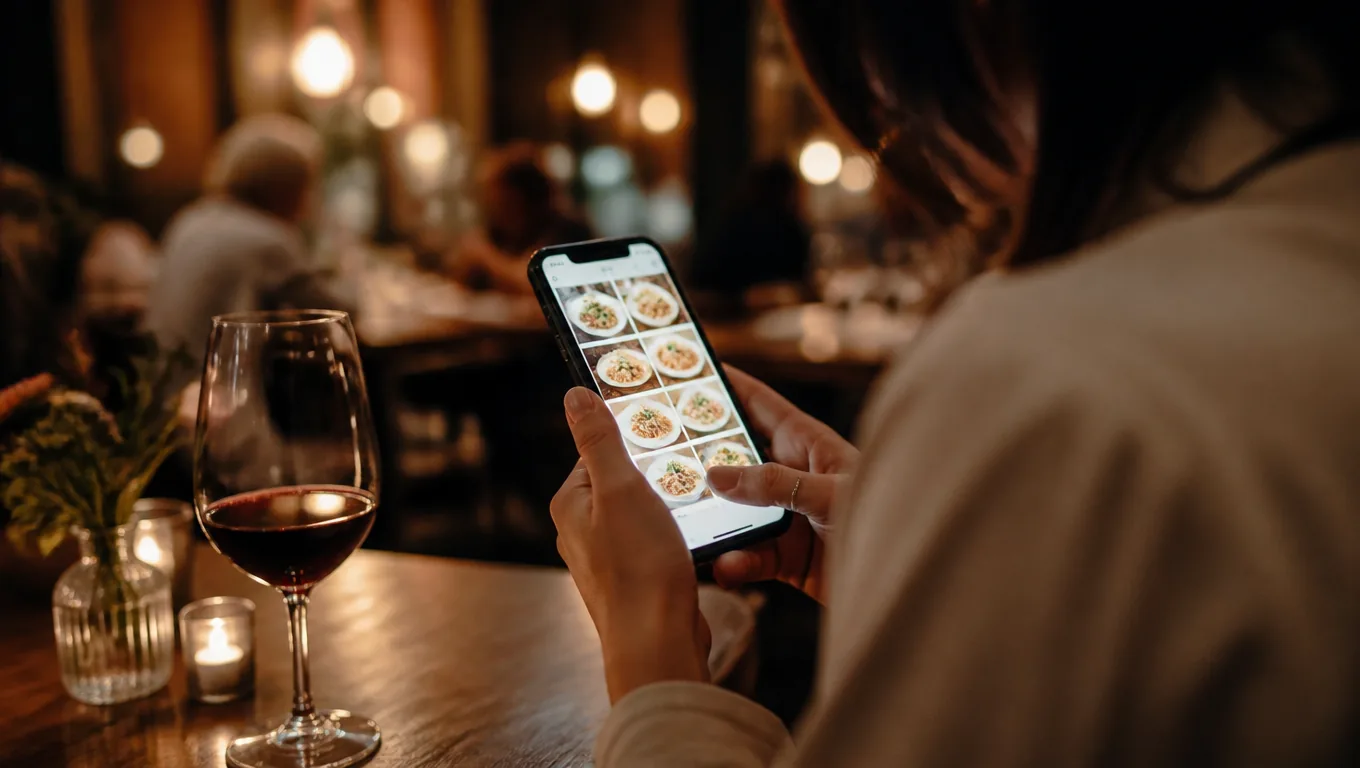
Pick a builder that works in the browser and shows a phone preview.
With MenuLolo's menu maker, you create an account, type your dishes into the layout you like, and see exactly how the public page will look — building and editing one menu with five dishes is free, and all three layouts are included at every tier.
Type, drag, save. Twenty minutes for a typical menu.
Step 3: Publish and get your link and QR code
When the menu looks right, publish it: the builder generates a web link and a matching QR code.
Print the QR on table cards, and your paper menu becomes a doorway — guests who scan it always see the live version, so the next price change never requires a reprint.
Denso Wave's printing guidance (a clear four-module margin around the code) is worth following when you lay out the card, and our QR code menu guide covers the full setup.
Step 4: Put the link where guests already look
An online menu only works if guests can find it without asking:
- Your website header — "Menu" should be one tap from the homepage.
- Google — add the menu link to your business profile so searchers see it before they see anything else.
- Instagram and TikTok bios — the first thing a curious scroller checks.
- Delivery listings — link out for guests who want the sit-down menu.
- Table cards — for the guests already sitting down.
Step 5: Keep it alive
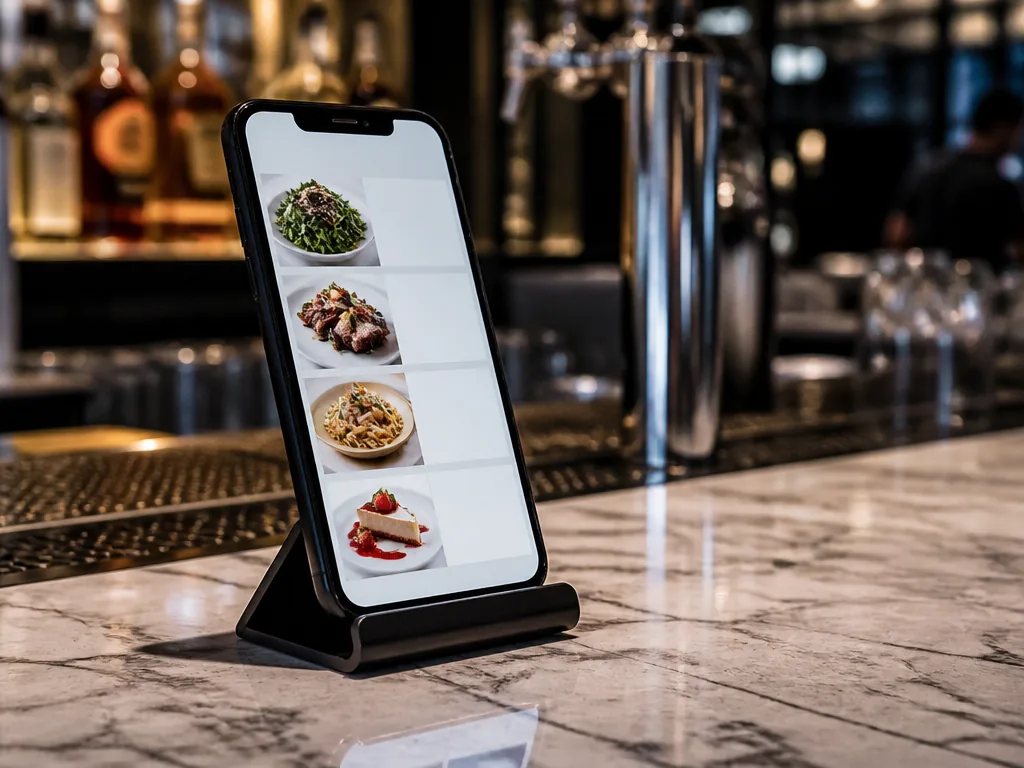
The online menu's superpower is updating. Set the rule now: prices, specials and sold-out items get edited the day they change, not next week. An online menu showing last month's specials is worse than a printed one, because it looks maintained while lying.
What does an online menu cost?
Here's the honest ledger. Building the menu — the part you do once — is free on MenuLolo, including the QR code and printable table cards.
Publishing the menu for guests to open needs a Starter or Pro subscription, because that's the ongoing service: hosting the live page, applying edits within about a minute of saving, and keeping the link stable for the life of the restaurant.
Editing stays free on every plan — change a price, save, done.
Compare that with the alternative routes: free PDF links cost nothing but go stale and pinch-zoom; delivery platforms host menus free but on their terms, inside their checkout. A dedicated web menu is the only version that's yours, current, and printable.
What are the most common mistakes?
- Uploading the PDF and calling it done. Guests on phones get a document they can't read without zooming. Rebuild it as a page instead.
- No prices. An online menu without prices generates "how much?" messages instead of decisions.
- Missing photos. Menus with photos outsell text-only listings — DoorDash tells merchants that menus "with header images and logos often get more monthly sales" (merchants.doordash.com). Use real photos of your food, cleaned up free.
- Stale content. A "Winter Specials" header in July undoes the credibility of everything else on the page.
- Invisible link. A menu published but not linked from Google, socials or your website is a party you threw without sending invitations.
FAQ
Is an online menu free?
Building one is: MenuLolo's builder, QR download and table cards cost nothing. Making the published menu visible to guests is part of a Starter or Pro plan. Free PDF links exist but degrade the mobile experience — most restaurants that try them rebuild as a web page within weeks.
How long does it take to put a menu online?
A short menu takes under an hour end to end: typing the content is the bulk of it. Building in a template-based maker runs about twenty minutes for a typical menu.
Can I update an online menu myself?
Yes — that's the point. Edit prices, hide sold-out dishes, add specials, save. The public page reflects changes within about a minute, and printed QR codes keep working with no reprint.
Do I need a website to have an online menu?
No. The menu lives on its own link; you add that link to your Google profile, social bios and table cards. A website is nice, not required.
Will an online menu work with a QR code?
That's the natural pairing. The QR code points at the live page, so the menu on the table and the menu online are always the same one — see our what is a digital menu primer for the full picture.
Quick recap
- Digitize what you sell, build it in a free browser maker, publish, then share the link everywhere guests already look.
- Web menu pages beat PDFs on phones; both lose to a page you can actually update.
- MenuLolo: build, QR and table cards free; publishing needs a plan; edits free and instant on every plan.
- Keep it alive — an online menu is a promise that this is what the kitchen serves today.
- Photos sell: clean up your dish shots before publishing, free.
Start with tonight's menu, not a perfect one — an online menu you update beats a beautiful one you don't. For design details, our menu design tips guide picks up where this one ends.